
PebbleOS Overview
Last updated February 9, 2026
Welcome to PebbleOS! Below, you'll find an informative walkthrough of the operating system that powers your Pebble smartwatch.
Note: The images below depict PebbleOS running on a Pebble Time 2, however, the experience should be the same across Pebble 2 Duo, Time 2, and Round 2 (unless specified). This walkthrough may not completely apply to older watches manufactured pre-2017.
Navigation:
Your Pebble's primary method of interaction are the four buttons positioned on either side of your watch. This guide will refer to them as such:
- Back: The isolated key positioned on the left of your watch. This helps you navigate backwards in the user interface.
- Up/Down: The two keys positioned at the very top and bottom (respectively), located to the right of your watch. These keys allow you to navigate and scroll the user interface in the up and down directions.
- Select: The middle key, positioned between Up and Down. Select is how you select and take action upon watch/menu items.
Note: If you've changed the screen orientation in Display settings, the above still applies, however Up/Down/Select will be positioned on the left of your watch, while Back will be on the right.
Your Watchface:

This is your watchface! All interactions on your watch will start from here. Press Select to access your app launcher, and, by default, Health and Timeline Future by pressing Up and Down (respectively). Change it up by exploring one of the thousands of watchfaces on the Pebble app store (accessible via the mobile app)!
App Launcher:
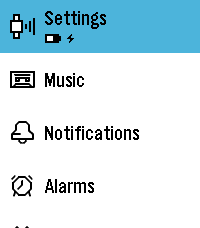
This is Pebble's app launcher. You can access it from your watchface by pressing the Select key. Here, you'll find apps that provide various functions for your watch, as well as any third-party apps you've installed from the Pebble App Store.
Timeline:
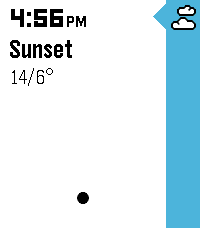
Timeline is your Pebble's method of organizing all the important things in your life in a single, linear fashion. It can organize:
- Calendar events
- Phone calls
- Sports events
- Reminders
- The weather, such as sunrise and sunset times
- And more!
Timeline is accessible from your watchface. From there, press the Down key to access Timeline Future. This will display all events and happenings in the future (chronologically), with the earliest event appearing at the top of the screen. Keep pressing the Down key to see any events further in the future or in the coming days.
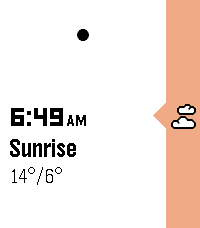
The Timeline can also help you access past events, whether it be reviewing your tasks for the day or catching up on a missed phone call. Similar to Timeline Future, your most recent events will be displayed at the bottom of the screen, with events further in the past appearing at the top of the screen, accessible by pressing the Up key.
Note: By default, Timeline Past is disabled in PebbleOS. You can re-enable it in Quick Launch settings!
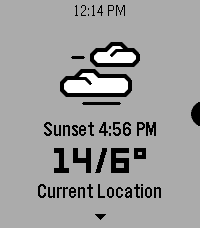
If you'd like to know more about a certain event, use the Up/Down keys to highlight it with the arrow (pictured on the right-hand side of the screen), then, press the Select key to get an expanded view.
Music:
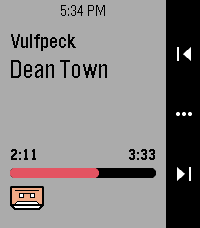
The Music app, accessible from the launcher, allows you to control music/media playback on your phone with your watch. Your watch will display the current track and duration (when playing); to change the track use the Up and Down keys! Pressing Select will also allow you to change volume as well as Play/Pause.
Tip: To raise volume without pressing Select, press and hold Next/Previous while a track is playing! You'll feel your watch vibrate as the volume is raised or lowered.
Settings:
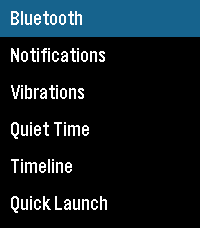
Accessible from the app launcher, the Settings app allows you to configure various options to personalize and make the most out of your Pebble. If you're using a Pebble 2 Duo, Time 2, or Round 2, these will also be accessible through the mobile app.
Bluetooth:
Here, you can manage your watch's Bluetooth state, as well as your paired phone/device.
- To turn your device to Airplane Mode, highlight the "Connection" label and tap select. This will disconnect your watch from your phone and turn off its Bluetooth radio.
- To unpair with your current phone, use the Up/Down keys to highlight it, then tap Select, then Unpair.
Notifications:
Configure your Pebble's behavior upon receiving a notification.
Filter: Choose which notifications you'd like to see on your watch.
Text Size: Select between Smaller, Default, and Larger. This controls the text size in the notification window. Selecting Smaller will show more content on screen, and vice versa.
Timeout: Determines how long a notification will persist on-screen before clearing itself. (Note: Timeout rules do not apply when Quiet Time is enabled! This is by design.)
(Pebble 2 Duo Only) Banner Style: Configures the appearance of notifications. "Classic" will display a grey banner above your notification, while "Flat Black" will show solid black.
Vibe Timing: Sets whether the watch will vibrate at the beginning of the notification (before the animation plays) or after all content is displayed on-screen.
Vibrations:
The Vibrations menu allows you to configure the type of vibration that your watch performs on certain notifications. Press the Select key to cycle through the different types!
Quiet Time:
Quiet Time is your Pebble's "Do Not Disturb" mode. With it enabled, it will continue to show your notifications (unless configured), however, vibrations will not play.
Manual: Toggle Quiet Time on/off. You can also do this by holding the Back key from your watchface!
Calendar Aware: When enabled, Quiet Time will automatically enable during a calendar event.
Weekdays: Set a Quiet Time schedule during the weekdays.
Weekends: Set a Quiet Time schedule during the weekends.
Interruptions: Choose whether to quiet all notifications or allow phone calls to pass through.
Timeline:
Here, you can configure Timeline Quick View. This will show a small pop-up window when an upcoming event is nearing, notifying you of its start date. Use this menu to enable/disable it, or change when Quick View appears.
Quick Launch:
Quick Launch allows you to launch certain apps and functions from your watchface. The following are set by default:
- Hold Back - Toggle Quiet Time
- Tap Up - Pebble Health
- Tap Down - Timeline Future
In addition to the above, you may also configure actions for holding Up, Down, and Select.