
SOS + Recovery Mode
Last updated February 11, 2026
In the event of a failure or crash, your watch may reboot to one of the following screens:
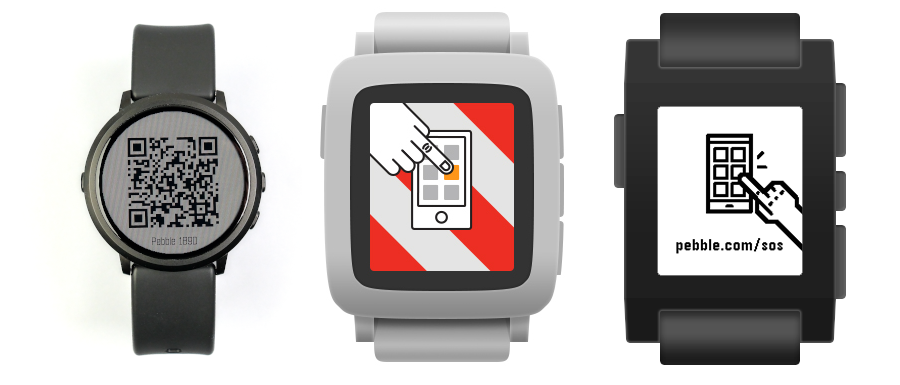
If you see the QR code screen:
- Open the Pebble app on your phone.
- In the Devices tab, find your watch. Tap it, then tap 'Forget'.
- Open your phone's Bluetooth settings. If you see your Pebble listed, forget the device.
- Hold Back + Up + Select on your watch until you see the boot screen or a progress bar.
- Open the Pebble app on your phone.
- In the Devices tab, tap +. You should see your watch pop up.
- Follow the pairing prompts on-screen and update your watch.
If you see the pebble.com/sos screen:
- Open the Pebble app on your phone.
- In the Devices tab, find your watch. Tap it, then tap 'Forget'.
- Open your phone's Bluetooth settings. If you see your Pebble listed, forget the device.
- Press and hold the Down button until an animation of two spinning circles appears (approx. 7-10 seconds).
- Wait for the animation to stop and for the watch to reboot back into recovery mode.
- Open the Pebble app on your phone.
- In the Devices tab, tap +. You should see your watch pop up.
- Follow the pairing prompts on-screen and update your watch.
- Once your Pebble updates, you'll be all set to go!
Still having trouble? Submit a bug report in the mobile app !